
Simple File Cloud
Price range: 49,00 € through 120,00 €
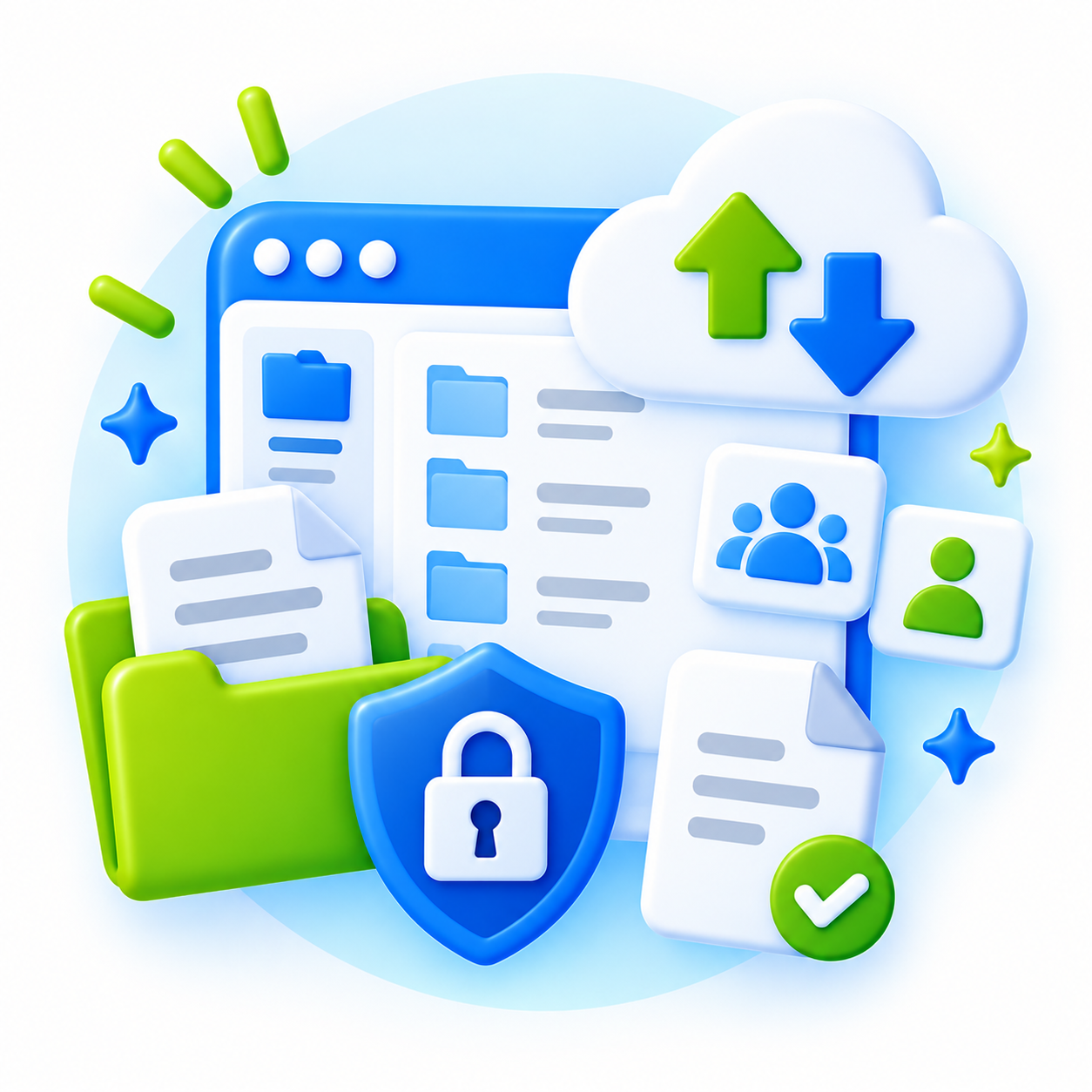
Create a secure file library in WordPress with folders, uploads, downloads and access control. Files are protected from direct public access and stored outside the public web root whenever supported by the server.
Ideal for intranets, staff resources and private document libraries.
Description
A secure file library inside WordPress
File Cloud adds a simple, folder-based file library to WordPress. Users can browse folders, upload and download files, and manage shared documents directly from the frontend.
It is ideal for WordPress intranets, staff file libraries, shared resources and other private document collections where files should not be publicly accessible through normal WordPress upload URLs.
Protect the actual files – not just the page
Restricting access to a WordPress page does not necessarily protect files linked from that page. A file stored normally in wp-content/uploads may still be accessible to anyone who knows its direct URL.
File Cloud is designed differently.
Files are delivered through WordPress only after access has been checked. Whenever supported by the server, the actual files are stored outside the public web root, preventing visitors and search engines from bypassing WordPress and accessing them directly.
Organize files into folders
Create a clear folder structure for documents and other shared files. Users can browse the library from the frontend without needing access to the WordPress administration area.
Depending on their permissions, users can:
- browse folders and files
- download files
- upload new files
- edit file information
- delete files
- manage the shared file library
Control who can view and manage files
Viewing and management permissions can be configured separately by WordPress user role.
Optional guest access also makes File Cloud suitable for environments where access to the surrounding page or website is already controlled by another method, such as IP-based access.
For more advanced WordPress intranets, File Cloud works particularly well alongside Role/IP Restrict, which can control access by IP address, IP Pool, user role or individual user.
File Cloud and Role/IP Restrict are separate plugins and can also be used independently.
Activity logging
File Cloud can keep an audit trail of file-library activity, including file access, downloads and changes.
Privacy controls include optional IP address logging, IP anonymization and automatic expiration of old log entries.
Built for simple WordPress intranets
You do not need a separate document-management platform just to provide staff with a protected shared file library.
File Cloud keeps the workflow inside WordPress:
folders → protected files → controlled access → frontend management
Simple for users and easy to integrate into an existing WordPress intranet.
Key features
- Secure WordPress file library
- Folder-based organization
- Protected file downloads
- Storage outside the public web root when supported
- Frontend uploads and file management
- Separate viewing and management permissions
- WordPress role-based access
- Optional guest access
- Activity and download logging
- Privacy controls for audit logs
- Works independently or alongside Role/IP Restrict
- Lieska license activation and automatic updates
Additional information
| Sites | 1 site, 3 sites, Unlimited sites |
|---|
Added SFTP storage support for storing File Cloud files on external servers and services such as Hetzner Storage Box.
Added support for local, mounted and remote SFTP storage.
SFTP credentials are stored securely and passwords are not displayed after saving.
Added SFTP connection testing, including write-access verification.
Added a dedicated File Cloud admin menu with Settings and Logs.
Improved storage usage reporting with a configurable storage size reference and remaining-space display.
Clarified that actual storage capacity and limits are controlled by the external storage provider.
Improved external storage configuration and status information.
1.4.1
Added a collapsible folder tree for clearer file navigation.
Folders are now closed by default and can be expanded by clicking the folder name or expand control.
Removed the separate folder management list and combined folder actions into the main file view.
Added folder download as ZIP, including all files and subfolders.
Added Delete and Download actions directly to each folder.
Improved the overall folder browsing and file management experience.
1.4.0
Added drag & drop bulk upload with automatic upload queue and progress display.
Added bulk download for selected files as a ZIP archive.
Added thumbnail previews for supported image files.
Improved handling of large file collections to avoid common PHP multi-upload limits.
Bulk download archives are created in protected File Cloud storage and automatically removed after download.
1.3.1
First public release.
Secure file storage outside the public web root.
Folder-based file library for WordPress.
Frontend file uploads, downloads and management.
Role-based viewing and management permissions.
Optional guest access and management.
Access and activity logging with privacy controls.
Protected file delivery with permission checks.
Lieska license activation and automatic updates.
Installation
- Download the File Cloud ZIP file.
- In WordPress, go to Plugins → Add New Plugin → Upload Plugin.
- Select the ZIP file and click Install Now.
- Activate File Cloud.
- Open the File Cloud settings and activate your Lieska license key.
- Check the storage status. File Cloud will use protected storage outside the public web root whenever the server configuration allows it.
- Configure viewing and management permissions for the required WordPress roles.
File Cloud is now ready to use.
Usage
Create your file library
Create the folders you need and organize them into a suitable hierarchy, for example:
Staff documents → Instructions → Forms
or
Marketing → Logos → Templates
Upload files into the appropriate folders.
Add the library to a page
Place the File Cloud library on the WordPress page where users should access it. The library provides the frontend interface for browsing folders and working with files.
Users only see and manage content according to the permissions you have configured.
Configure access
Choose which WordPress roles are allowed to view the file library and which roles are allowed to manage its contents.
Management permissions can allow users to upload, edit and delete files without giving them access to the WordPress administration area.
Enable guest access only when anonymous access is intentional—for example, when the surrounding intranet is already protected by IP address or another access-control system.
Review activity
Use the activity log when you need to see file access, downloads or management actions.
Configure the privacy settings according to your organization’s requirements, including whether IP addresses are stored, anonymized and how long log entries are retained.
Using File Cloud with Role/IP Restrict
For a simple WordPress intranet, the two plugins can complement each other:
Role/IP Restrict controls who can enter the intranet or access particular content.
File Cloud provides the protected, folder-based shared file library inside it.
For example, employees at the office can be granted intranet access automatically based on the office IP address and then use File Cloud without needing a separate file-management system.
Summary
Simple File Cloud creates a secure, folder-based file library in WordPress. Files are protected from direct public access and stored outside the public web root when supported by the server. Users can browse, upload, download, and manage files through the frontend with role-based access control.
FAQ
Simple File Cloud allows you to create a secure file library with folder-based organization, where files are protected from direct public access. Files are stored outside the public web root when supported by the server, and access is controlled through WordPress user roles.
Simple File Cloud stores files outside the public web root when supported by the server, and delivers them only through WordPress after access has been verified. This prevents direct access via file URLs.
Yes, Simple File Cloud enables frontend file management. Users can browse folders, upload, download, and edit file information directly from the frontend, depending on their assigned permissions.
Simple File Cloud provides a folder-based file library where files can be organized into folders. Access is controlled by WordPress user roles, and files are protected from direct access when stored outside the public web root.
Related products
-
 Content
Scheduled Snowfall
Add beautiful, lightweight snowfall effects to your WordPress site — fully customizable, performance-friendly, and easy to control with scheduling options. One-time payment. -
 Admin & Tools · Security
Simple Cookie Banner
Cookie Banner (WPML) is a lightweight, fully non-intrusive informational cookie banner for WordPress websites that use only essential cookies. Perfect for websites using WP… -
 Content · Interaction
Slide Panel Tabs
Slide Panel adds fully customizable slide-in panels with tab icons anywhere on your site. Create multi-tab sidebars, menus, contact panels, or on-page toolboxes with… -
 AI · Content
Multi-Language Alt Text AI
Make your images accessible in seconds with the Multi-Language Alt Text AI plugin. This powerful tool utilizes OpenAI to automatically generate ALT text in…
